
Quick answer: Inseego MiFi hotspots open at 192.168.1.1, or type http://my.mifi in a browser. There is no fixed default password. Your admin password matches the Wi-Fi password shown right on the device screen.
Inseego MiFi is a pocket hotspot with a battery, a SIM, and a small touchscreen. That screen changes everything about login. You rarely need a sticker, because the device shows its own details.
Other devices? See our Huawei, ZTE, and Wavlink login guides.
Find Your Login Details on the Screen
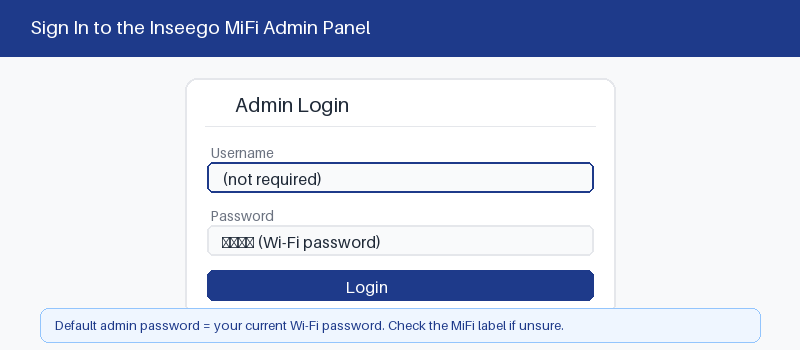
This is the Inseego advantage. Most hotspots show the admin details on the screen itself. You do not need to flip the device over or hunt for a tiny label.
Tap through the menu to see your login.
- Wake the MiFi and open the menu.
- Tap Help or the settings icon.
- Choose Admin Website or Wi-Fi details.
- Read the address and password shown.
- 192.168.8.1 login guide
Log In From a Browser
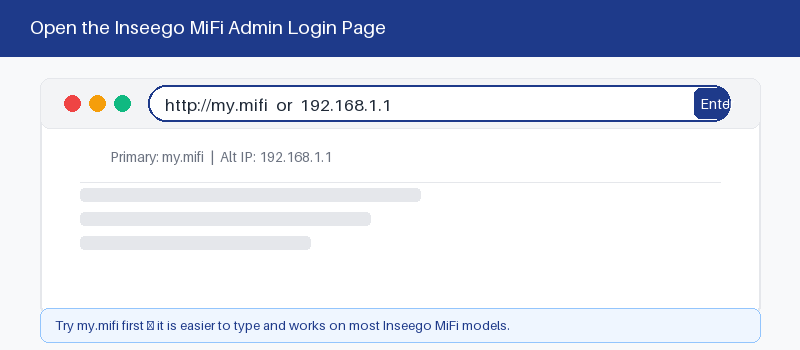
With the details in hand, login takes four steps.
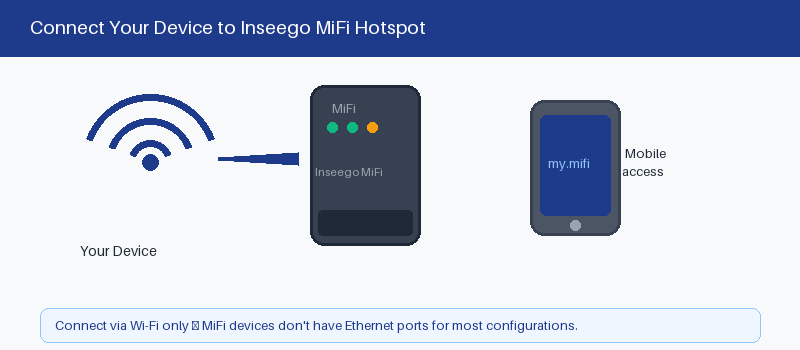
- Connect to the MiFi Wi-Fi network.
- Open a browser on the same device.
- Type 192.168.1.1 or http://my.mifi.
- Enter the admin password to sign in.
The Admin Password Equals Your Wi-Fi Password
Here is the part people miss. On a new MiFi, the admin password is the same as the Wi-Fi password. Both are printed on the label and shown on the screen.
Inseego asks you to change the admin password the first time you log in. After that, the two passwords are separate. Keep the new admin password somewhere safe.
Change Your Wi-Fi Name and Password
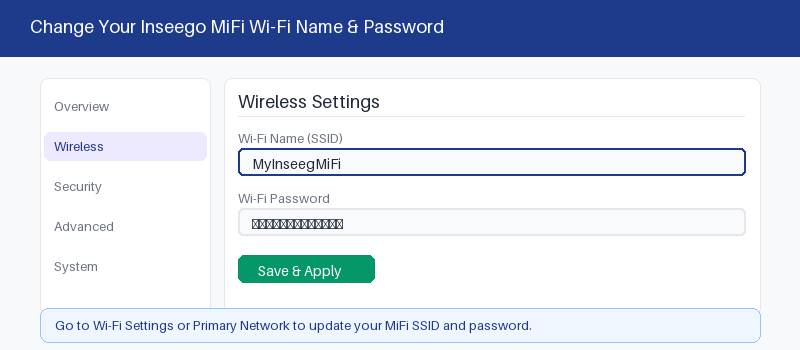
Once signed in, updating your Wi-Fi is quick.
- Open the Wi-Fi or Network tab.
- Edit the network name field.
- Enter a strong new password.
- Save and reconnect your devices.
If You Cannot Reach the Admin Page
A MiFi only serves its admin page to devices on its own Wi-Fi. Most access problems come from the wrong network or a typo in the address. Check these first.
These quick checks fix most cases.
- Confirm your device joined the MiFi Wi-Fi.
- Type the address in the bar, not search.
- Make sure the MiFi is charged and on.
- Restart the hotspot and try again.
Reset the MiFi to Factory Settings
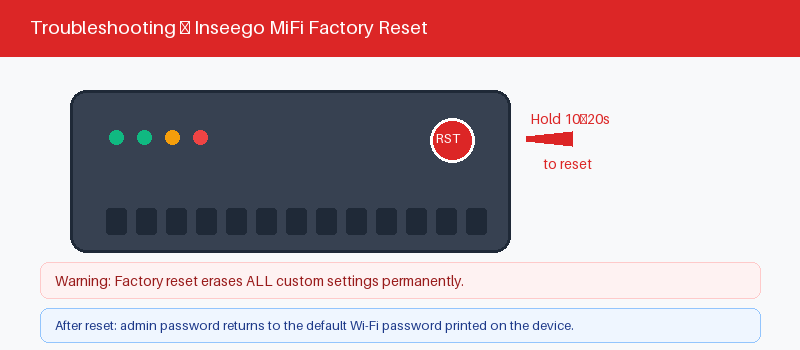
A reset wipes your names, passwords, and saved settings. Use it only if you are locked out. Your mobile data plan stays active, since that lives on the SIM, not the settings.
Reset through the menu or the hidden button.
- Open Settings, then look for Factory Reset.
- Or press the reset hole with a pin.
- Confirm the reset when the device asks.
- Wait for the MiFi to restart fully.
Frequently Asked Questions
What is the default password for an Inseego MiFi?
There is no single default. Each MiFi ships with a unique admin password that matches the Wi-Fi password. Find it on the device label or on the hotspot’s own screen.
What is my.mifi and how do I use it?
It is a shortcut web address. Instead of typing 192.168.1.1, join the MiFi Wi-Fi and enter http://my.mifi. Both open the same admin page in your browser.
Where do I see the password on the device?
Wake the screen and open the menu. Tap Help, then Admin Website, or look under Wi-Fi details. The current name and password appear right there on the display.
I forgot my Inseego admin password. What now?
Check the screen first, since it shows the current details. If you changed it and forgot, a factory reset restores the original label password. You will then set a new one.
Is my Inseego the same as a Verizon or AT&T hotspot?
Often yes. Carriers sell Inseego MiFi and Jetpack units under their own brand. The login steps are the same. The screen and label still show your address and password.
Can I manage the MiFi without a computer?
Yes. You can change most settings on the touchscreen itself. For full control, use any phone browser at 192.168.1.1, or the Inseego mobile app where supported.
Related Brand Guides
Using a different device? These guides help too.
- Huawei Router Login Guide
- ZTE Router Login Guide
- Cudy Router Login Guide
- Wavlink Router Login Guide
- Secure your home Wi-Fi (CISA)
Bottom Line
The Inseego MiFi makes login easy. The screen shows your address and password, and the admin password starts as the Wi-Fi password. Check the display first, and change the password after you log in.
Thanks for your feedback!
Sorry about that. Tell us what was missing and we will fix it.