
Quick answer: Sagemcom gateways use the F@ST model name. Most open at 192.168.1.1, with admin and admin as the default login. Some models use 192.168.0.1 or 192.168.1.254. The nameplate shows your exact details.
Sagemcom builds gateways that providers hand to their customers. You will see them branded as Bell Home Hub, or from BT, Sky, and others. The model name always starts with F@ST. Here are the 2026 steps.
Other gateways? See our Technicolor, CommScope, and Budii login guides.
Find Your F@ST Model Number
Sagemcom labels every gateway with an F@ST model number, spelled with an at sign. That number tells you the default address. You will find it on the nameplate on the back or base.
Sagemcom names its gateways in the F@ST series, and the default address depends on the model. Match your model number below, and remember the nameplate lists the exact address for your unit.
| Model | Default address | Often supplied by |
|---|---|---|
| F@ST 5250, 5260 | 192.168.1.1 | North American cable providers |
| F@ST 5310, 5364 | 192.168.1.1 | Bell and similar large ISPs |
| F@ST 3686, 3890 | 192.168.0.1 | Cable internet providers only |
| F@ST 1704 | 192.168.1.254 | Older DSL internet setups here |
| Your nameplate | Address on the sticker | Always the exact single source |
The model number is printed on the nameplate, usually as F@ST followed by four digits.
Default Login and the Nameplate
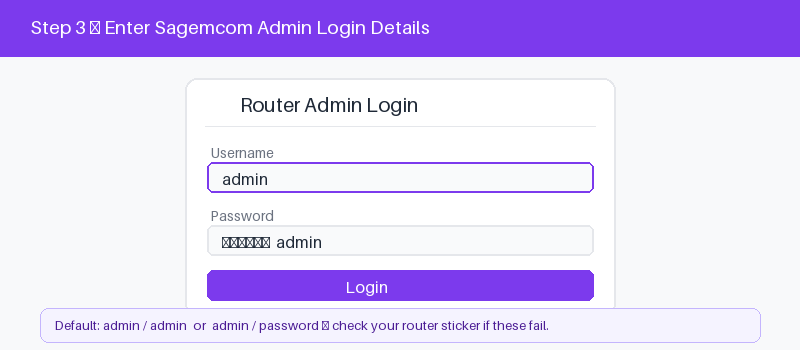
Most Sagemcom gateways still accept admin and admin. Providers sometimes change this, so the nameplate is the backup. It lists the username, password, address, and the Wi-Fi name and key for your unit.
If admin and admin do not work, read the nameplate carefully. Some units print a unique password there. Enter it exactly as shown, since it is case-sensitive.
Log In Step by Step
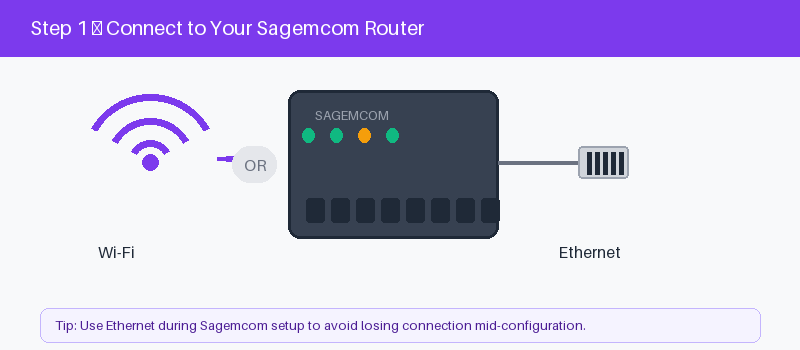
These four steps get you into the gateway.
- Connect to the Sagemcom by Wi-Fi or cable.
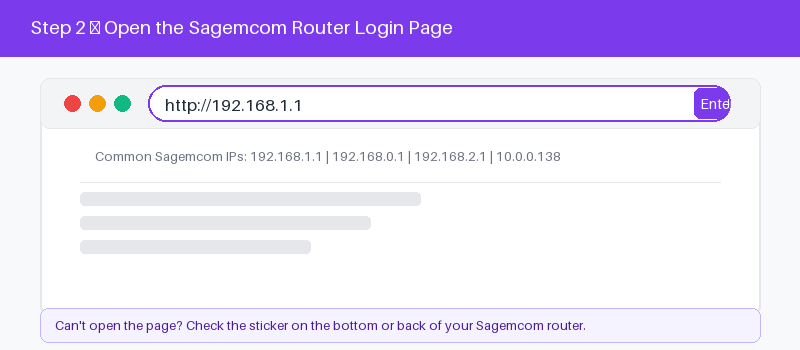
- Open a browser and type the address.
- Enter admin, or the nameplate password.
- Select Log In to open settings.
Change Your Wi-Fi Name and Password
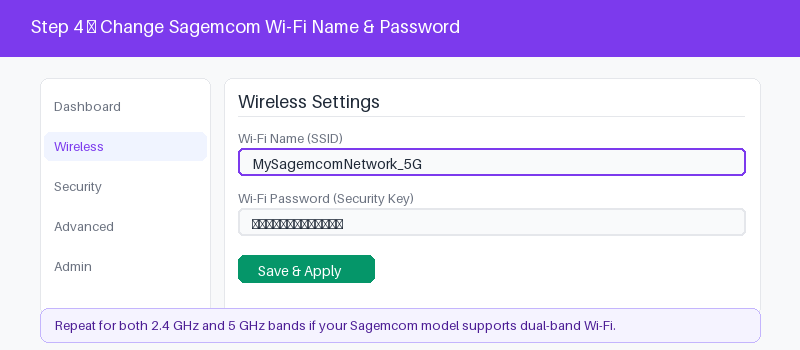
After login, updating your Wi-Fi is quick.
- Open the Wireless or Wi-Fi menu.
- Enter a new network name.
- Set a strong new password.
- Save and reconnect your devices.
If the Login Page Will Not Load
Because the address changes across F@ST models, the wrong IP is the usual reason a page fails. Confirm the address from the nameplate, then try these checks before a reset.
These four checks fix most cases.
- Use the exact address from the nameplate.
- Confirm you are on the Sagemcom network.
- Type the address in the bar, not search.
- Restart the gateway and wait a minute.
- 192.168.0.1 login guide
Reset a Sagemcom Router to Factory Settings
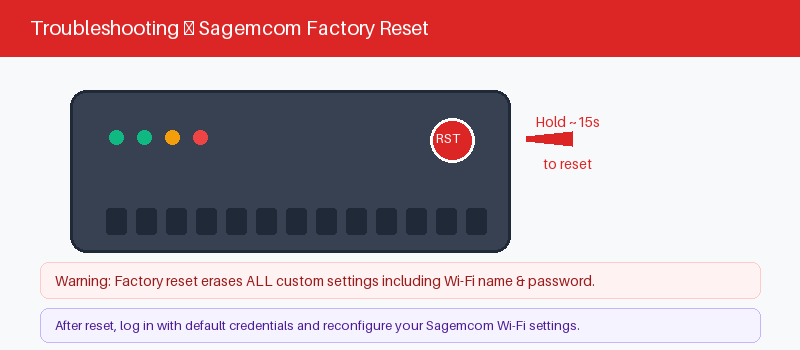
A reset returns the gateway to factory defaults and erases your settings. On provider units, it may also clear service settings. Hold the reset button for five to ten seconds.
Follow these steps to reset safely.
- Keep the gateway powered on.
- Press the reset hole with a pin.
- Hold five to ten seconds until it restarts.
- Log in with admin or the nameplate.
Frequently Asked Questions
What is the default login for a Sagemcom router?
Most Sagemcom gateways use admin and admin at 192.168.1.1. Some models differ, and a few use a unique password. The nameplate on the unit lists your exact login details.
What does F@ST mean on my router?
F@ST is Sagemcom’s product line, spelled with an at sign. Models like F@ST 5250 or 5366 are all Sagemcom gateways. The number after F@ST identifies your exact model.
What IP address does a Sagemcom gateway use?
Most use 192.168.1.1. Some models use 192.168.0.1 or 192.168.1.254. The address depends on your F@ST model, so check the nameplate if the first one does not open.
Is my Bell Home Hub a Sagemcom router?
Often yes. Bell supplies Sagemcom-built Home Hub gateways. The login works the same way. Use the address and password on the nameplate, or admin and admin if they still apply.
I forgot my Sagemcom password. What now?
Try admin and the nameplate password first. If both fail, hold the reset button for five to ten seconds. The gateway returns to defaults so you can log in again.
Can I log into a Sagemcom router from my phone?
Yes. Join the Sagemcom Wi-Fi, open a browser, and type the address from the nameplate. Enter the username and password shown there, exactly as you would on a computer.
Related Brand Guides
On a different gateway? These guides help too.
- Technicolor Router Login Guide
- CommScope Router Login Guide
- Budii Router Login Guide
- Huawei Router Login Guide
- Secure your home Wi-Fi (CISA)
Bottom Line
Sagemcom login starts with your F@ST model number. Most open at 192.168.1.1 with admin and admin, but the nameplate has the exact details. Reset for five to ten seconds if you are locked out.
Thanks for your feedback!
Sorry about that. Tell us what was missing and we will fix it.