
Quick answer: Most ZTE devices open at 192.168.1.1 for fiber units or 192.168.0.1 for mobile hotspots. The default login is usually admin and admin. On ISP fiber models, the admin account may be locked.
ZTE makes two very different products: fiber ONT boxes from your provider and pocket Wi-Fi hotspots. They use different addresses and behave differently at login. This guide covers both, updated for 2026.
Other brands? See our Huawei, Cudy, and Wavlink login guides.
Two Kinds of ZTE Devices
Before you log in, know which ZTE you have. The address and defaults depend on it. Check the label on the unit to confirm the model and printed login details.
ZTE devices split into two main groups, each with its own default address and login details. Use this table to match your unit first, before you type anything into a web browser.
| Device type | Default address | Typical login | Who supplies it |
|---|---|---|---|
| ZXHN F-series fiber ONT | 192.168.1.1 | admin and admin | Your internet provider |
| MF-series mobile hotspot | 192.168.0.1 | admin and admin | Bought by you |
| Older ZTE DSL modem | 192.168.1.1 | admin, or user and user | Provider or retail |
| ISP fiber unit, locked | 192.168.1.1 | Custom label password | Provider controlled |
Fiber boxes come from your internet provider. Hotspots you buy yourself. The label always shows the correct address and password for your exact unit.
Log In Step by Step
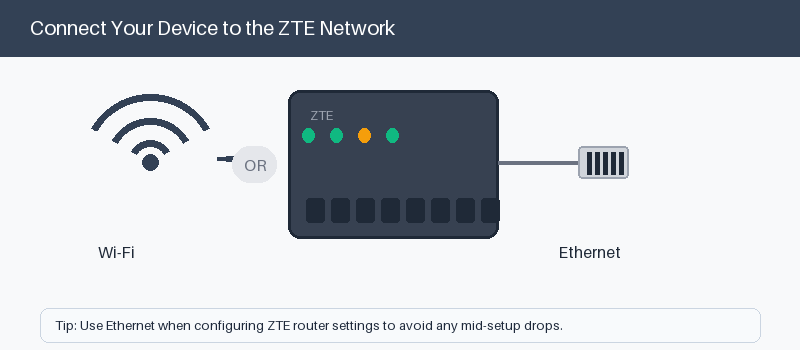
These five steps work for most ZTE routers and hotspots.
- Connect to the ZTE by Wi-Fi or cable.
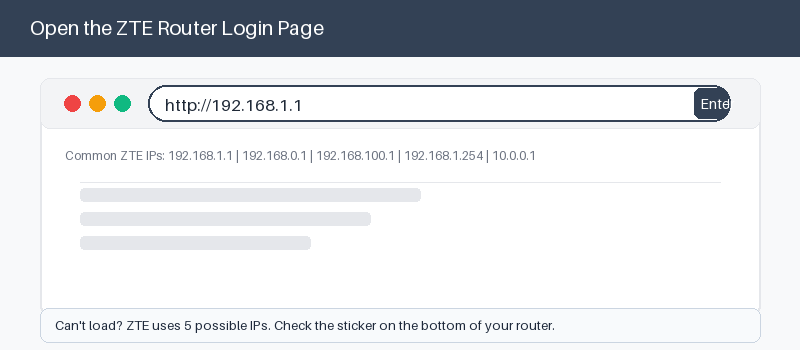
- Open a browser and type the address.
- Press Enter to load the login page.
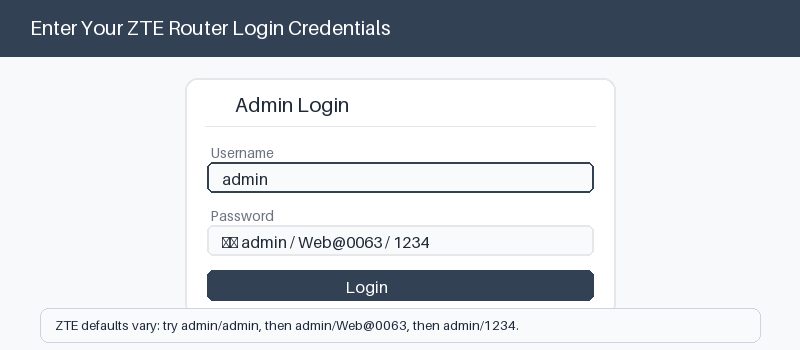
- Enter the username and password.
- Select Login to open the dashboard.
Why Your ZTE Admin Login May Be Locked
Here is the catch with ZTE fiber units. Many providers ship them with locked firmware. You get a limited user account, while the full admin account stays under the provider’s control.
If admin and admin fail and the label password also fails, the account is likely locked. A reset will not fix this. You must contact your provider to unlock full access.
Change the Wi-Fi Name and Password
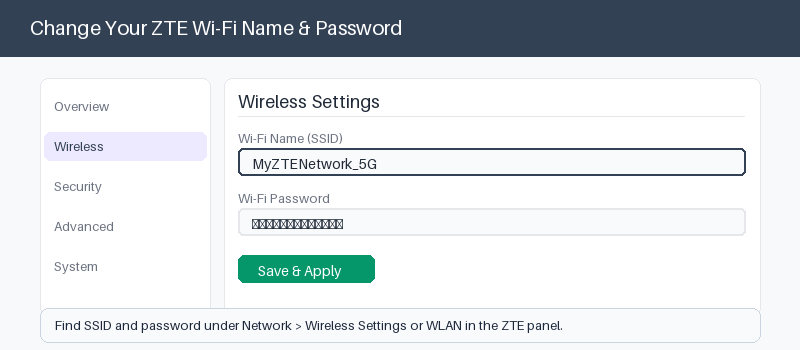
With a working login, you can rename your Wi-Fi in seconds.
- Open the Network or WLAN menu.
- Find the SSID or Wi-Fi name.
- Type a new name and password.
- Save or apply your changes.
If the Page Will Not Load
A blank or missing login page usually points to the wrong address or a weak connection. Try these checks in order before assuming the router is faulty.
Most page problems clear with these four steps.
- Check you joined the ZTE network, not mobile data.
- Swap 192.168.1.1 and 192.168.0.1 to test both.
- Power the unit off for one minute.
- Open the address in a private window.
- 192.168.0.1 login guide
Reset a ZTE Router, and When Not To
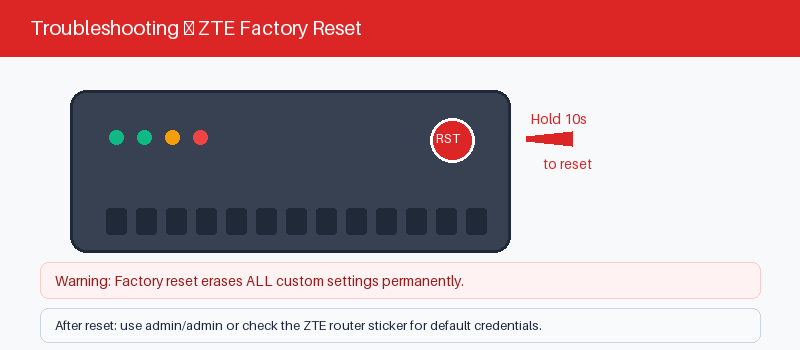
A reset restores factory defaults and erases your settings. On ISP fiber units, it can also drop your internet and may not unlock a locked admin account. Reset only when you must.
If you decide to reset, here is the safe way.
- Back up your provider’s settings if you can.
- Press the reset hole with a pin.
- Hold about ten seconds until lights change.
- Reconnect and set up Wi-Fi again.
Frequently Asked Questions
What is the default login for a ZTE router?
For most ZTE units it is admin and admin. Fiber ONT boxes open at 192.168.1.1, while MF hotspots use 192.168.0.1. Always check the sticker, since providers often set their own password.
Why do admin and admin not work on my ZTE?
Your provider likely locked the admin account. Many fiber ISPs give customers only a limited user login. To get full admin access, you usually need to call the provider and ask.
What is the difference between a ZTE F670L and an MF hotspot?
The F670L is a fiber ONT installed by your provider at 192.168.1.1. An MF hotspot is a portable 4G or 5G device at 192.168.0.1. They look and behave very differently.
Can I log into a ZTE router from my phone?
Yes. Join the ZTE Wi-Fi, open any browser, and type the address. MF hotspots also have a companion app called ZTELink for setup and status on your phone.
Will a factory reset unlock my ZTE admin account?
Often no. If the provider locked the firmware remotely, a reset restores defaults but the admin stays protected. In that case only the provider can restore full access.
How do I update my ZTE Wi-Fi password safely?
Log in, open the WLAN or Network menu, and set a strong new password. Use at least twelve mixed characters. Save the change, then reconnect your devices with the new password.
Related Brand Guides
Setting up a different brand? Start with one of these.
- Huawei Router Login Guide
- Cudy Router Login Guide
- Wavlink Router Login Guide
- Inseego MiFi Login Guide
- Secure your home Wi-Fi (CISA)
Bottom Line
ZTE login is simple once you know your device type. Hotspots and fiber boxes differ, and provider locks are common. Match your model, use the label, and call your ISP if admin stays locked.
Thanks for your feedback!
Sorry about that. Tell us what was missing and we will fix it.