
Quick answer: Technicolor gateways come from internet providers, not stores. The login address and password depend on your provider. Common addresses are 192.168.1.254 and 192.168.0.1. The real password is usually a long code on the label.
Technicolor does not sell routers to the public. Providers like CenturyLink, Spectrum, and Telstra hand them out. That means your login details are set by the provider, not by Technicolor. Here are the 2026 steps.
Other gateways? See our Sagemcom, Budii, and ZTE login guides.
Your Provider Sets Up a Technicolor
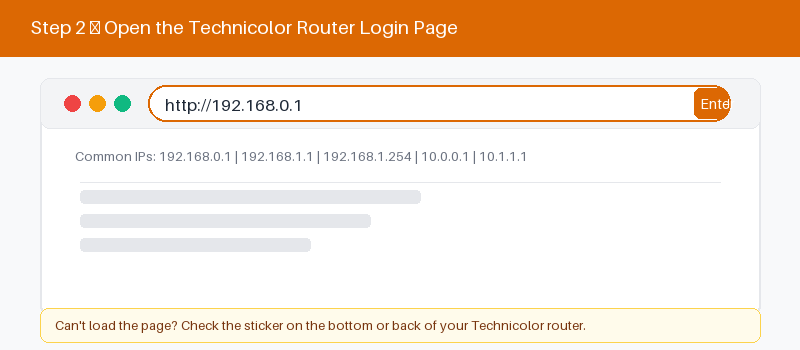
The first thing to know is who gave you the gateway. Technicolor builds the hardware, but your provider loads its own settings. So the address and password vary from one provider to the next.
Technicolor gateways come from many internet providers, and each one uses its own address. This table lists common providers and their usual login address, but your label always has the exact one.
| Provider | Typical login address | Notes |
|---|---|---|
| CenturyLink | 192.168.0.1 | Common on DSL and fiber lines |
| Spectrum | 192.168.1.1 | Used on cable internet gateways here |
| Telstra | 192.168.0.1 | Common on Australian NBN units today |
| Generic default | 192.168.1.254 | Try this when no provider matches |
| Check the label | Address on the sticker | Always the most reliable single source |
If your provider is not listed, read the sticker on the gateway for the correct address.
The Label Is the Source of Truth
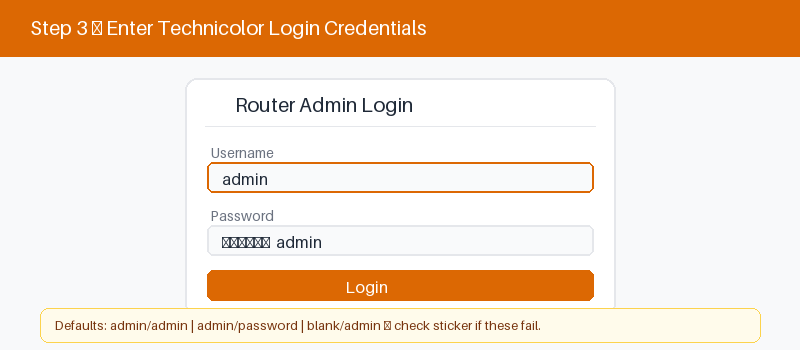
For Technicolor, the sticker matters more than any default. Many units use a long, unique password printed there, not admin. Look for the label on the base or back of the gateway.
The label lists the login address, username, and password for your exact unit. It also shows the Wi-Fi name and key. If admin and admin fail, the label is your answer.
Log In Step by Step
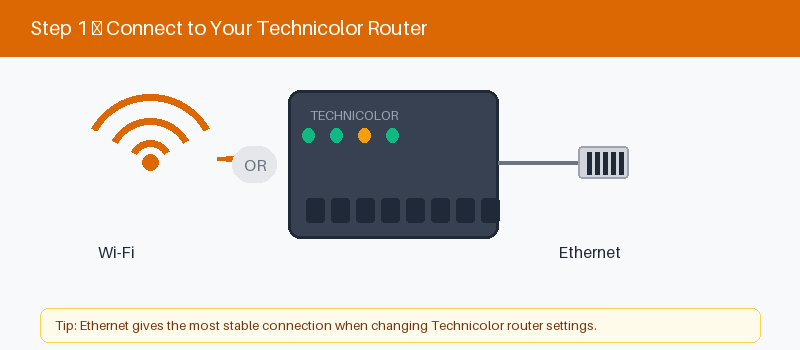
These four steps get you into the gateway.
- Connect to the Technicolor by Wi-Fi or cable.
- Open a browser and type the label address.
- Enter the username and password from the label.
- Select Log In to open settings.
Change Your Wi-Fi Name and Password
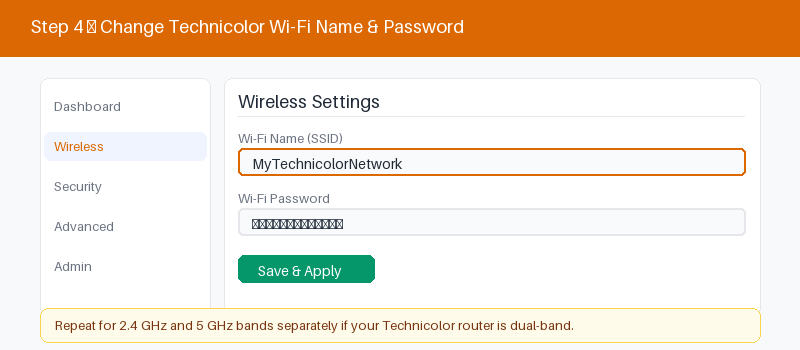
After login, updating your Wi-Fi is quick.
- Open the Wireless or Wi-Fi menu.
- Enter a new network name.
- Set a strong new password.
- Save and reconnect your devices.
If the Page Will Not Open
Because the address varies by provider, a wrong IP is the top cause of a missing page. Confirm the address from the label, then work through these checks before you reset.
These four checks fix most cases.
- Use the exact address from the label.
- Confirm you are on the gateway network.
- Type the address in the bar, not search.
- Restart the gateway and wait a minute.
- 192.168.0.1 login guide
Reset a Technicolor Gateway to Factory Settings
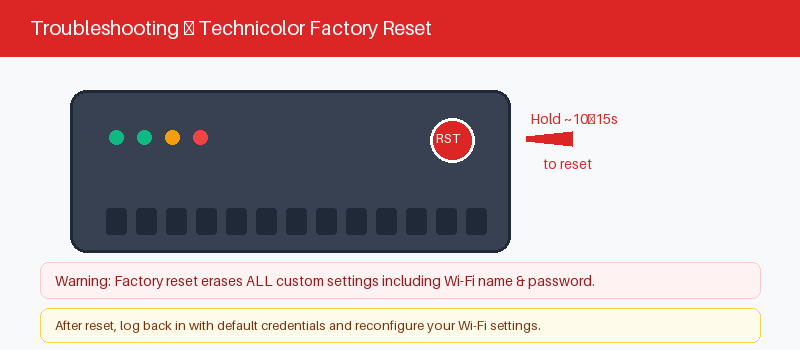
A reset clears provider tweaks along with your settings, so use it carefully. On some units, a reset returns to the label password. On others, you may need the provider to reprovision service.
If you must reset, here is how.
- Keep the gateway powered on.
- Press the reset hole with a pin.
- Hold about fifteen seconds until it restarts.
- Log in with the label details.
Frequently Asked Questions
What is the default login for a Technicolor gateway?
It depends on your provider. Many use admin and admin, but a lot use a long unique password on the label. Always check the sticker for the address, username, and password.
What is the IP address for a Technicolor router?
Common ones are 192.168.1.254, 192.168.0.1, and 192.168.1.1. It changes by provider, so the address on your label is the one that counts. Type it into your browser to log in.
Why is my Technicolor password not admin?
Providers often replace the simple default with a long, unique password for security. That code is printed on the label. Enter it exactly, since it is case-sensitive and easy to mistype.
Which provider makes my Technicolor gateway?
Technicolor builds gateways for many providers, including CenturyLink, Spectrum, and Telstra. Your provider is usually printed on the front or the label. That tells you which login details to expect.
I forgot my Technicolor password. What now?
Try the label password first. If you changed it, a reset may restore that label default. On provider units, you might need to call support to reprovision the gateway.
Can I log into a Technicolor gateway from my phone?
Yes. Join the gateway Wi-Fi, open a browser, and enter the address from the label. Then type the username and password shown there, just as you would on a computer.
Related Brand Guides
On a different gateway? These guides help too.
- Sagemcom Router Login Guide
- CommScope Router Login Guide
- Budii Router Login Guide
- Huawei Router Login Guide
- Secure your home Wi-Fi (CISA)
Bottom Line
With Technicolor, your provider decides the login. Read the label for the address, username, and password, since many units use a long unique code. When in doubt, contact your internet provider.
Thanks for your feedback!
Sorry about that. Tell us what was missing and we will fix it.