
Quick answer: Budii and Budii Lite are iiNet gateways from Australia. They open at 10.1.1.1, not a 192 address. Leave the username blank and enter admin as the password. Change that password soon for safety.
The Budii and Budii Lite are modem-routers that iiNet supplies to its customers in Australia. They use an unusual login address and a simple default password. This guide covers both, updated for 2026.
Other brands? See our Technicolor, Sagemcom, and Huawei login guides.
Budii Uses 10.1.1.1, Not a 192 Address
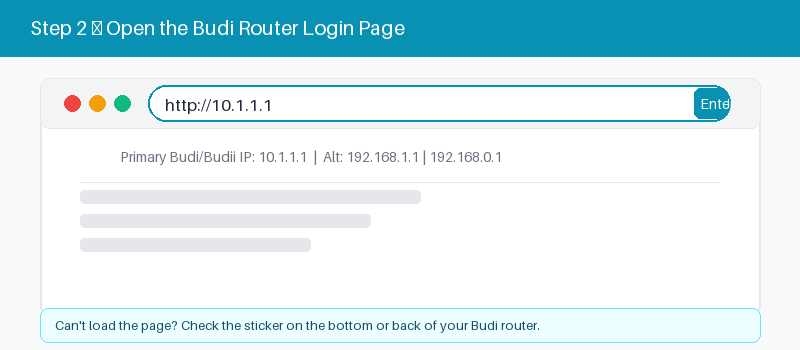
Most home routers use a 192 address. Budii is different. It uses 10.1.1.1, a private address in a different range. Type it exactly, with three ones after the ten.
This address works for both the Budii and the Budii Lite. If it does not open, the most common reason is a typo or being on mobile data instead of the Budii Wi-Fi.
Log In With a Blank Username
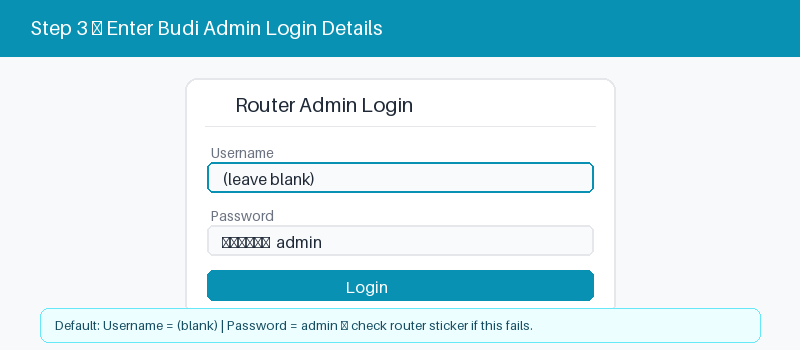
Budii login is unusual in another way. You leave the username field empty. In the password field, type admin. That is the factory default that iiNet ships on every Budii and Budii Lite.
These four steps log you in.
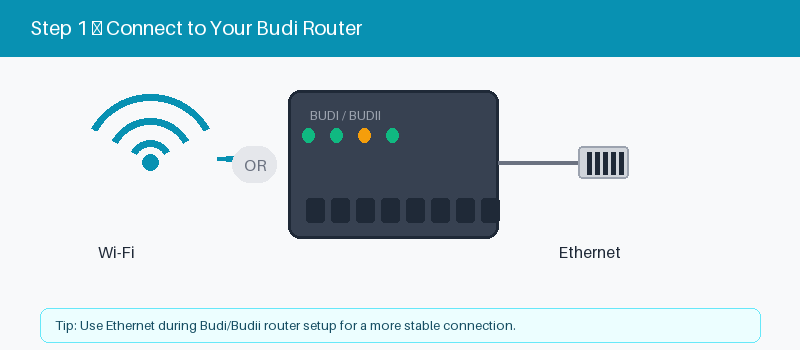
- Connect to the Budii by Wi-Fi or cable.
- Open a browser and type 10.1.1.1.
- Leave the username blank.
- Type admin and select Log In.
Budii vs Budii Lite
The two models share the same login but differ in hardware. The Budii includes a cordless phone dock. The Budii Lite drops the dock to lower the price. Both connect over DSL or NBN.
Both units log in the same way, but they are not identical devices. This quick comparison shows what changes between the Budii and the cheaper Budii Lite so you know your model.
| Feature | Budii | Budii Lite |
|---|---|---|
| Web login address | Opens at 10.1.1.1 address | Also opens at 10.1.1.1 |
| Default password | Password is admin by default | Password is admin by default |
| Cordless phone dock | Included cordless handset dock | No phone dock included |
| Best suited for | Home phone plus fast internet | Internet on a tight budget |
Check the label or your iiNet welcome pack if you are unsure which model you have.
Change Your Wi-Fi Name and Password
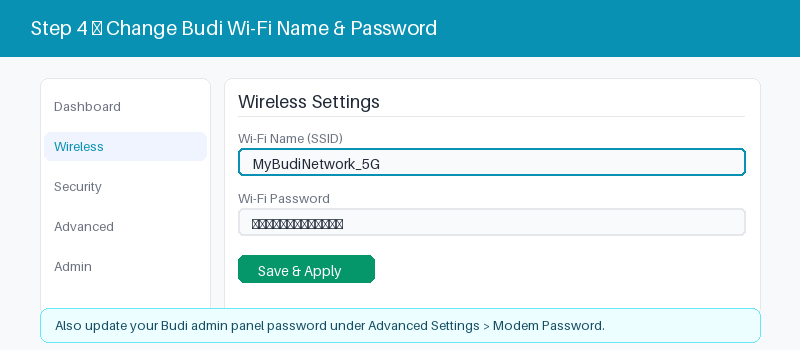
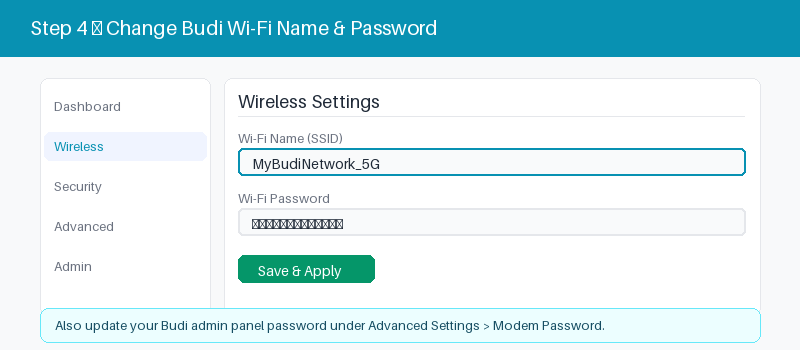
After login, updating your Wi-Fi is quick.
- Open the Wireless or Wi-Fi section.
- Enter a new network name.
- Set a strong new password.
- Save and reconnect your devices.
If 10.1.1.1 Will Not Open
Because Budii uses 10.1.1.1, a wrong address is the usual cause of a missing page. Check the connection and the address before you reset or call iiNet support.
These four checks fix most cases.
- Confirm you are on the Budii Wi-Fi.
- Type 10.1.1.1, with three ones.
- Enter it in the bar, not search.
- Restart the Budii and wait a minute.
- 10.1.1.1 login guide
Reset a Budii Modem to Factory Settings
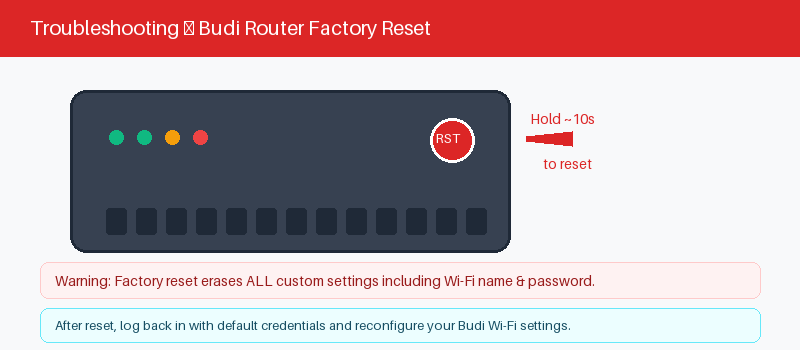
A reset returns the Budii to factory state and sets the password back to admin. Use it if you forget a changed password. Your iiNet service settings usually reload on their own.
The reset takes about ten seconds.
- Keep the Budii powered on.
- Press the reset hole with a pin.
- Hold about ten seconds until it restarts.
- Log back in with admin.
Frequently Asked Questions
What is the default IP for a Budii or Budii Lite?
Both use 10.1.1.1, not a 192 address. Join the Budii Wi-Fi or plug in with a cable, then type 10.1.1.1 into your browser to reach the login page.
What is the default Budii password?
The password is admin, and the username is left blank. This is the factory default from iiNet. Change it soon, since admin is easy to guess and weak for remote access.
What is the difference between Budii and Budii Lite?
They log in the same way. The Budii has a cordless phone dock built in. The Budii Lite removes the dock to cost less. Both are iiNet modem-routers for DSL or NBN.
I forgot my Budii password. What now?
Reset the modem to clear it. Hold the reset button for about ten seconds. The password returns to admin, and you can log in and set a new one right away.
Do I need my iiNet account details to log in?
No. The 10.1.1.1 login uses the modem password, not your iiNet account. Your account details are only for the iiNet website and phone support, not the modem page itself.
Can I log into Budii from my phone?
Yes. Connect your phone to the Budii Wi-Fi, open a browser, and go to 10.1.1.1. Leave the username blank and enter admin, just as you would on a computer.
Related Brand Guides
On a different gateway? These guides help too.
- Technicolor Router Login Guide
- Sagemcom Router Login Guide
- Huawei Router Login Guide
- ZTE Router Login Guide
- Secure your home Wi-Fi (CISA)
Bottom Line
Budii and Budii Lite log in the same way: open 10.1.1.1, leave the username blank, and enter admin. Change that password quickly, and reset to admin if you ever get locked out.
Thanks for your feedback!
Sorry about that. Tell us what was missing and we will fix it.