
Quick answer: Most Huawei home routers open at 192.168.3.1. The web login password is separate from your Wi-Fi password. Older units use admin and admin; newer ones use the password you set during setup.
Huawei routers work a little differently from other brands. The page you log into, the password it wants, and the setup app are all Huawei-specific. This guide shows the current steps for 2026 models.
Need another brand? See our ZTE, Cudy, or Wavlink login guides.
Where to Find Your Huawei Login Address
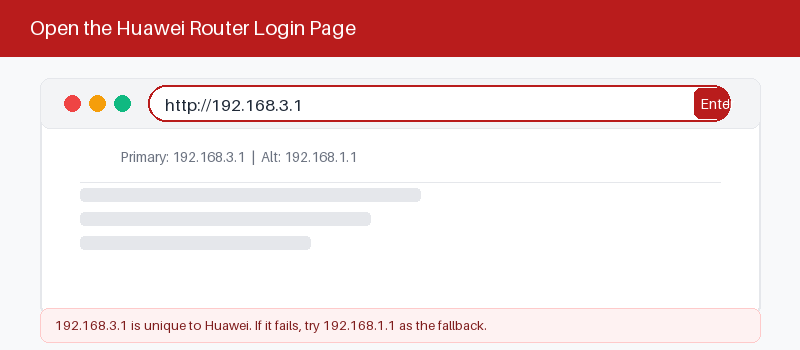
Huawei uses more than one login address, depending on the model and who supplied it. Try these addresses in order, starting from the most common consumer default and moving down to ISP fiber units.
| Address | Which Huawei devices use it | Notes |
|---|---|---|
| 192.168.3.1 | Most Wi-Fi routers, AX and WiFi series | Try this address first |
| 192.168.1.1 | Older routers and some ISP units | Common fallback address |
| 192.168.101.1 | Mobile Wi-Fi and some CPE units | Check the printed label |
| 192.168.100.1 | Fiber ONT gateways from providers | Used on fiber setups |
| Label address | Whatever is printed on the sticker | Always the safest source |
The address is printed on a sticker under the router. If one address does not load, move to the next one in the list.
The Two Passwords Huawei Keeps Separate
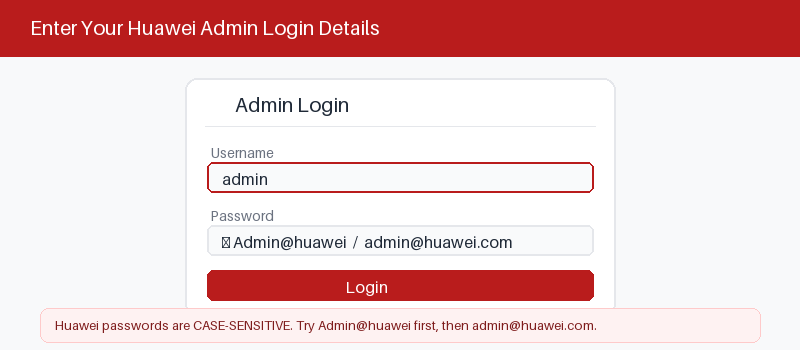
This trips up many people. Your Wi-Fi password lets devices join the network. The web login password opens the settings page. Huawei keeps them separate, so one is not the other.
On older routers the web password is often admin. On newer ones, you set it during first setup. Some ISP fiber units print a web password like Admin@huawei on the label.
Log In From a Web Browser
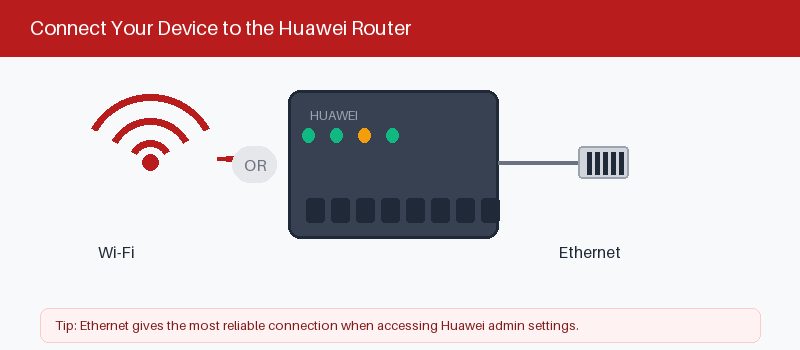
Follow these five steps to reach the Huawei settings page from any browser.
- Connect to the router by Wi-Fi or cable.
- Open a browser and type the login address.
- Press Enter to load the page.
- Type the web login password.
- Select Log In to open settings.
Set It Up With the HUAWEI AI Life App
Huawei’s official setup uses the AI Life app instead of a browser. It is the easiest path on a phone and unlocks extras like guest Wi-Fi and parental controls.
The app setup takes three quick steps.
- Install HUAWEI AI Life from your app store.
- Scan the QR code on the router label.
- Follow the prompts to set your passwords.
- 192.168.3.1 login guide
Change Your Wi-Fi Name and Password
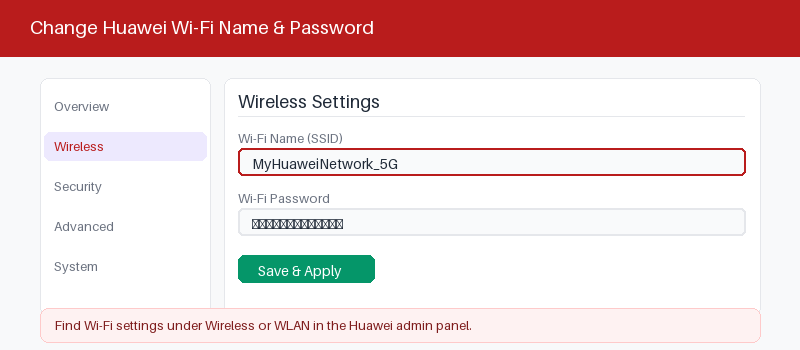
Once you are logged in, updating Wi-Fi takes a moment.
- Open My Wi-Fi or Wi-Fi Settings.
- Type a new network name.
- Enter a strong new password.
- Save to apply the change.
When the Login Page Will Not Open
Most login trouble comes from a wrong address, a weak connection, or a stale session. Work through these quick checks before you reset anything.
These fixes solve most page-loading problems.
- Confirm you are on the router’s own network.
- Type the address in the bar, not search.
- Restart the router and wait one minute.
- Try another browser or private window.
Reset a Huawei Router to Factory Settings
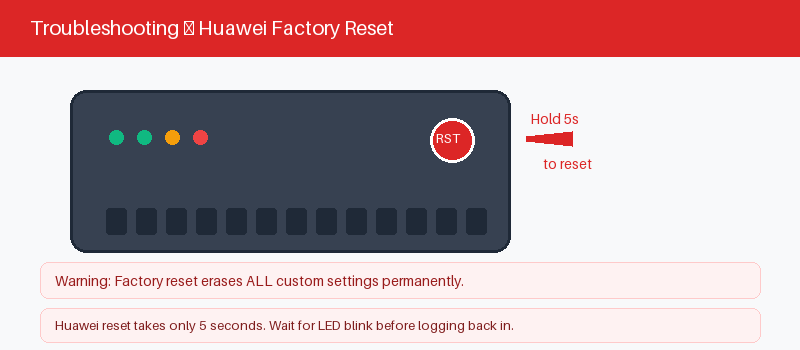
A reset helps when no password works. It wipes every custom setting and returns the router to factory defaults. Only do this as a last resort.
Reset takes about ten seconds with a pin.
- Keep the router powered on.
- Press the Reset hole with a pin.
- Hold about ten seconds until lights blink.
- Wait for the router to restart.
After the reset, log in with the label password or admin, then set a new Wi-Fi name and password right away.
Frequently Asked Questions
Is the Huawei login password the same as my Wi-Fi password?
Not by default. Huawei keeps the two separate. The Wi-Fi password joins devices to the network. The web login password opens the settings page. You may set them to match, but Huawei does not.
Which address do I use, 192.168.3.1 or 192.168.1.1?
Start with 192.168.3.1, the default on most Huawei Wi-Fi routers. Older and ISP models often use 192.168.1.1. The exact address is printed on the sticker under your router.
What is Admin@huawei and when do I need it?
That is a factory web password on some Huawei fiber units supplied by providers. It is case-sensitive, with a capital A. Most home Wi-Fi routers do not use it, so check your label first.
Can I manage a Huawei router from my phone?
Yes. Use any mobile browser at the login address, or install the HUAWEI AI Life app. The app is the smoother option and adds guest Wi-Fi, device limits, and firmware updates.
I forgot the web login password. What now?
First try the password on the router label. If that fails, reset the router with a pin for ten seconds. A reset restores factory access but erases your custom settings.
How do I update Huawei router firmware?
Log in, open More or Advanced, then find Firmware or Router Update. Newer models can update from the AI Life app. Keeping firmware current fixes bugs and closes security gaps.
Related Brand Guides
On a different brand? These guides use the same clear steps.
- ZTE Router Login Guide
- Cudy Router Login Guide
- Wavlink Router Login Guide
- Inseego MiFi Login Guide
- Secure your home Wi-Fi (CISA)
Keep This Guide Handy
Huawei login comes down to three things: the right address, the separate web password, and the AI Life app. Bookmark this page for the next time you change your network.
Thanks for your feedback!
Sorry about that. Tell us what was missing and we will fix it.