
Quick answer: Sercomm is an OEM behind many ISP boxes, so its devices are often rebranded. Most open at 192.168.1.254. The username is admin, and the password is usually password, 1234, or blank.
You may own a Sercomm device without knowing it. Sercomm builds routers, LTE gateways, and cameras that ISPs rebrand. The login is simple once you find the address and try a few default passwords.
Other gateways? See our Arcadyan, Humax, and Technicolor login guides.
The Brand Behind Many ISP Boxes
Sercomm rarely puts its own name on the front. It builds hardware that providers rebrand as their own. So your router may say your ISP’s name while running Sercomm firmware inside.
Check the sticker or the FCC ID to confirm a Sercomm build. Most open at 192.168.1.254, an address that is less common than the usual 192.168.1.1.
Try These Default Passwords
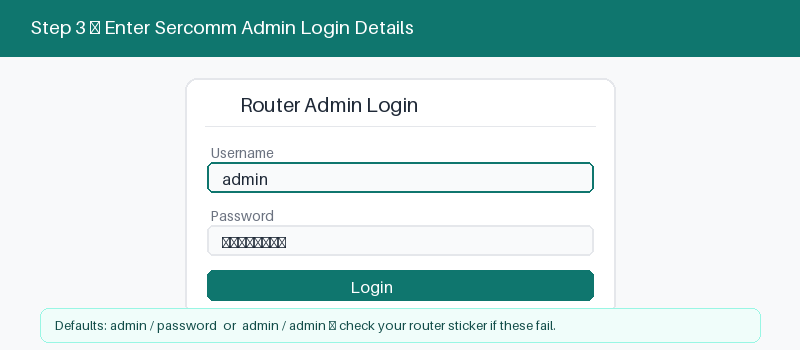
Sercomm does not use one fixed password. Different models and providers set different defaults. The quickest path is to try the common ones in order before you reach for a reset.
Sercomm defaults vary more than most brands, so it helps to try a short list. Work down this table in order, and remember the sticker holds the exact details for your unit.
| Detail | What to enter | Notes |
|---|---|---|
| Web address | 192.168.1.254 first | Then 192.168.1.1 or 192.168.0.1 |
| Username | Type admin | Same on nearly all units |
| Password | Try password first | Then 1234, or leave blank |
| If those fail | Read the sticker | It lists the exact password |
| ISP units | Check provider docs | The password may be changed |
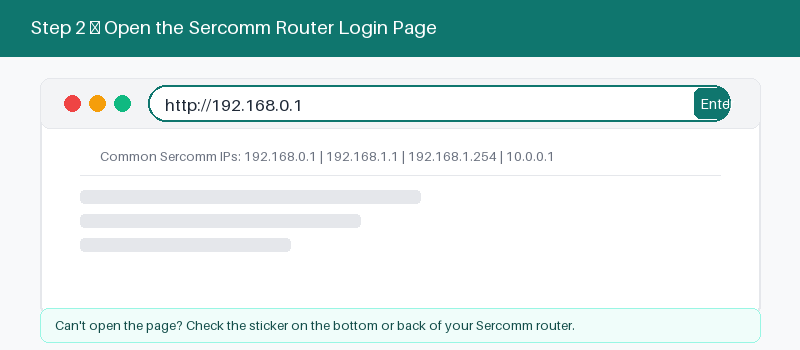
Most Sercomm units open at 192.168.1.254, which is less common than the usual addresses.
Log In Step by Step
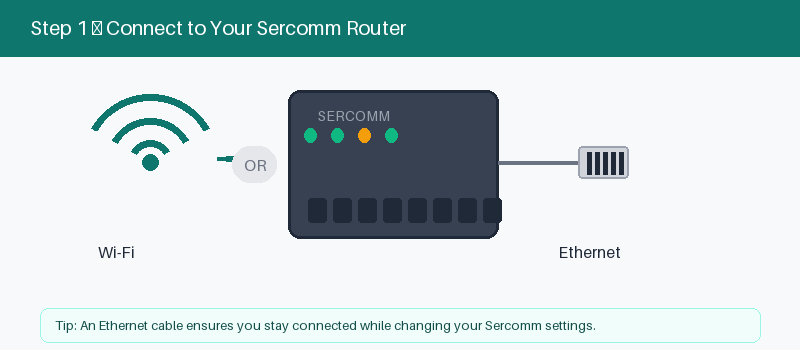
These four steps get you into the router.
- Connect to the Sercomm by Wi-Fi or cable.
- Open a browser and type 192.168.1.254.
- Enter admin and a default password.
- Select Log In to open settings.
Change Your Wi-Fi Name and Password
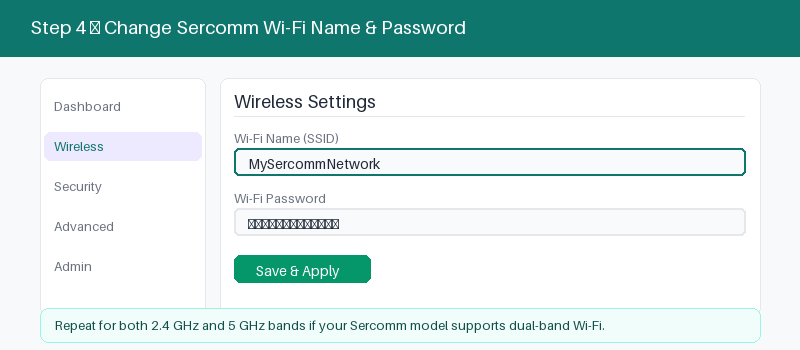
After login, updating your Wi-Fi is quick.
- Open the Wireless or Wi-Fi menu.
- Enter a new network name.
- Set a strong new password.
- Save and reconnect your devices.
If the Page Will Not Open
Because Sercomm often uses 192.168.1.254, typing the wrong address is the top cause of a missing page. Confirm the address on the sticker, then run these checks before a reset.
These four checks fix most cases.
- Confirm you are on the Sercomm network.
- Try 192.168.1.254, then 192.168.1.1.
- Type the address in the bar, not search.
- Restart the router and wait a minute.
- 192.168.1.254 login guide
Reset a Sercomm Router to Factory Settings
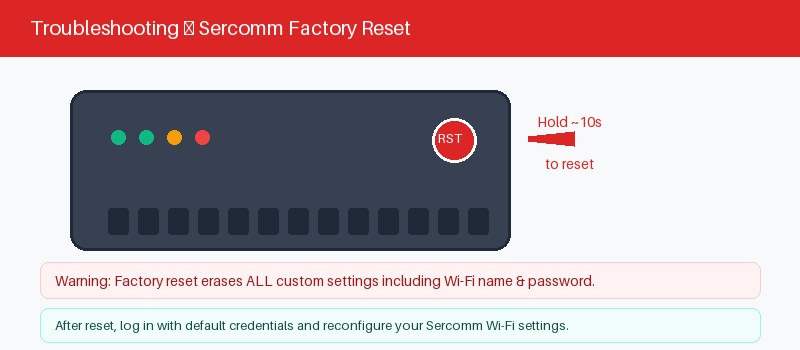
A reset clears your settings and returns the defaults. On an ISP unit, the provider settings may reload on their own. Hold the reset button for about ten seconds.
Follow these steps to reset it.
- Keep the router powered on.
- Press the reset hole with a pin.
- Hold about ten seconds until it restarts.
- Log in with a default password.
Frequently Asked Questions
What is the default login for a Sercomm router?
The username is admin. The password is usually password, but 1234 or a blank password also appear. Most units open at 192.168.1.254. The sticker lists the exact details.
Why does my router say a different brand, not Sercomm?
Sercomm is an OEM that builds hardware for others. Your ISP rebrands the device with its own name. Inside, it is still a Sercomm unit, so these steps apply.
What IP address does a Sercomm router use?
Most use 192.168.1.254, which is less common than 192.168.1.1. Some models use 192.168.1.1 or 192.168.0.1. Check the sticker if the first address does not open.
Which password should I try first?
Start with admin and password. If that fails, try admin with 1234, then admin with a blank password. The sticker shows the correct one if none of these work.
I forgot my Sercomm password. What now?
Try the defaults and the sticker first. If none work, hold the reset button for about ten seconds. The router returns to defaults so you can log in again.
Can I log into a Sercomm router from my phone?
Yes. Join the Sercomm Wi-Fi, open a browser, and type 192.168.1.254. Enter admin and a default password. The steps are the same as on a computer.
Related Brand Guides
On a different gateway? These guides help too.
- Arcadyan Router Login
- Humax Router Login Guide
- Technicolor Router Login Guide
- Huawei Router Login Guide
- Secure your home Wi-Fi (CISA)
Bottom Line
Sercomm hides behind ISP branding, but the login is simple. Open 192.168.1.254, enter admin, and try password, 1234, or blank. The sticker has the exact details if the defaults fail.
Thanks for your feedback!
Sorry about that. Tell us what was missing and we will fix it.