
Quick answer: Wavlink devices open at 192.168.10.1. You can also type wifi.wavlink.com or waplogin.link. The default password is admin, with the username left blank or set to admin. Most Wavlink units are extenders.
Wavlink is best known for range extenders, repeaters, and high-power access points. These devices share one login page but can run in different modes. This guide covers the current 2026 steps.
Other brands? See our Cudy, Huawei, and ZTE login guides.
Several Ways to Reach the Wavlink Page
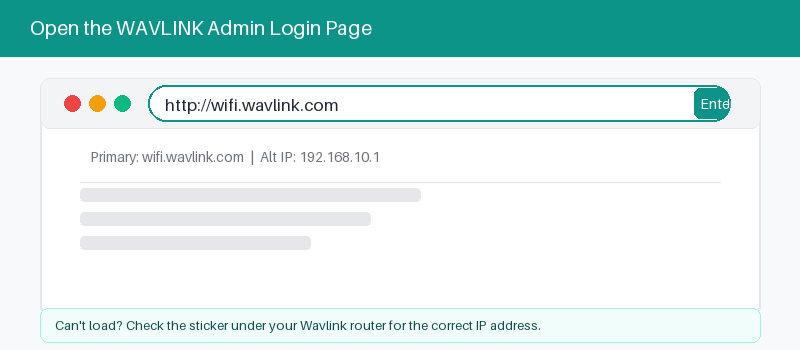
Wavlink gives you more than one way in. The IP address always works. The named web addresses are easier to type. All of them open the same login page in your browser.
Wavlink accepts several web addresses for the same login page. Pick whichever is easiest to remember, and keep the IP address handy as a reliable backup if a name fails.
| Address | Type | When to use |
|---|---|---|
| 192.168.10.1 | Default IP address for most units | Always works, try this one first |
| wifi.wavlink.com | Named web address by Wavlink | Easy to type and remember |
| waplogin.link | Short named address, easy backup | A short backup web address |
| 192.168.20.1 | Chained extender IP, second tier | For a second unit in a chain |
The IP address is the most reliable. Use a named address only after you join the Wavlink Wi-Fi.
Log In With the Admin Password
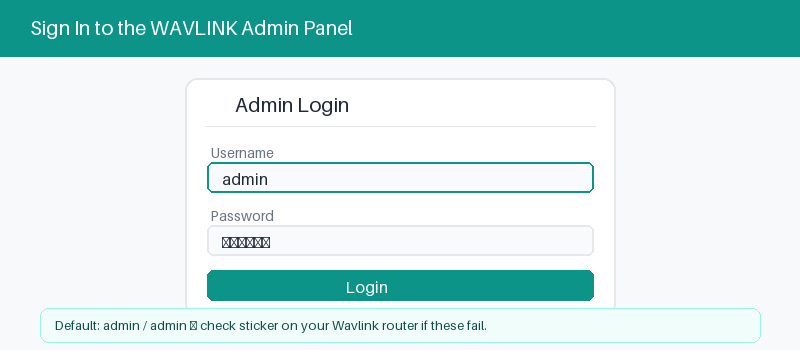
Wavlink login is password-first. Out of the box, the password is admin. The username is often blank, or admin if the page asks for one. You set a new password during setup.
These four steps get you signed in.
- Connect to the Wavlink by Wi-Fi or cable.
- Open a browser and type 192.168.10.1.
- Enter admin as the password.
- Select Login to open settings.
Router, Repeater, or Access Point Mode
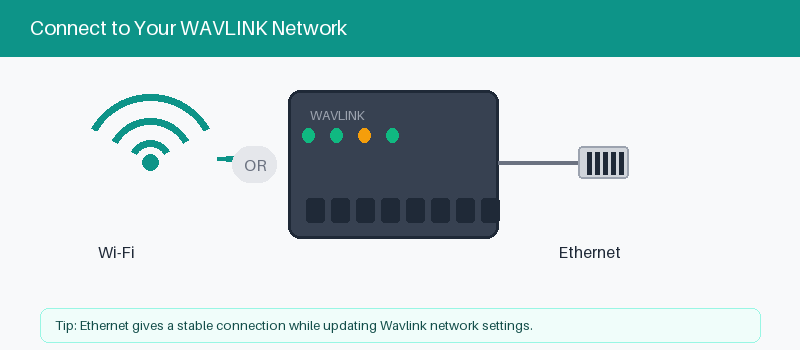
Here is what sets Wavlink apart. One device can act as a router, a repeater, or an access point. The login is the same, but the setup wizard changes to match the mode you pick.
Repeater mode extends an existing Wi-Fi signal. Access point mode adds Wi-Fi to a wired network. Router mode runs the whole network. Choose the mode that fits your setup after you log in.
Change Your Wi-Fi Name and Password
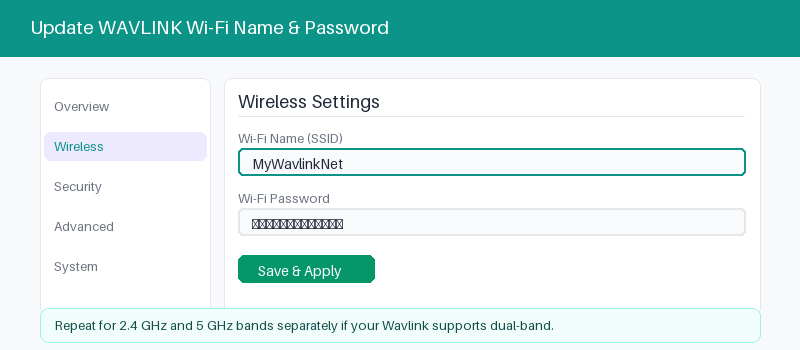
After login, updating Wi-Fi is quick.
- Open the Wi-Fi or Wireless menu.
- Enter a new network name.
- Set a strong new password.
- Save and reconnect your devices.
When the Login Page Will Not Open
Most Wavlink login trouble comes from the address or the mode. In repeater mode, a chained unit may move to 192.168.20.1. Try these checks before you reset anything.
These fixes clear most page problems.
- Join the Wavlink network before loading the page.
- Try 192.168.10.1, then 192.168.20.1.
- Type the address in the bar, not search.
- Power the device off for one minute.
- 192.168.10.1 login guide
Reset a Wavlink Device to Factory Settings
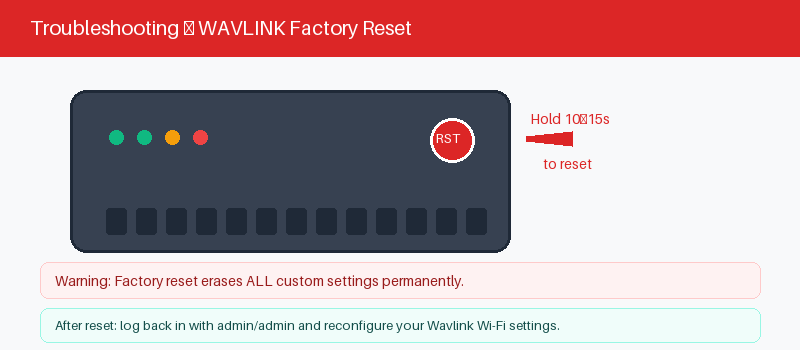
A reset erases your mode, names, and passwords, returning the device to factory state. Use it if the admin password fails. You will run the setup wizard again afterward.
The reset takes about ten seconds.
- Keep the Wavlink powered on.
- Press the reset hole with a pin.
- Hold about ten seconds until lights blink.
- Wait for the device to restart.
Frequently Asked Questions
What is the default login for a Wavlink device?
The default password is admin. The username is usually blank, or admin if required. Most Wavlink units open at 192.168.10.1, and you set your own password during setup.
What is wifi.wavlink.com or waplogin.link?
These are named web addresses that open the Wavlink login page. Join the device Wi-Fi first, then type one into your browser. They point to the same page as 192.168.10.1.
Why does my Wavlink use 192.168.20.1?
That happens when a Wavlink repeats another Wavlink. The second unit shifts to 192.168.20.1 to avoid a clash. Try that address if 192.168.10.1 does not open the page.
What is the difference between router and repeater mode?
Router mode runs your whole network from the modem. Repeater mode rebroadcasts Wi-Fi from another router to extend range. You pick the mode in the setup wizard after logging in.
I forgot my Wavlink password. What now?
Try admin first, since that is the factory password. If you changed it, hold the reset button for ten seconds. The device returns to factory state and admin works again.
Can I set up a Wavlink extender from my phone?
Yes. Connect your phone to the Wavlink Wi-Fi, open a browser, and go to 192.168.10.1. The setup wizard is mobile-friendly and walks you through repeater or access point mode.
Related Brand Guides
On a different brand? Start with one of these.
- Cudy Router Login Guide
- Huawei Router Login Guide
- ZTE Router Login Guide
- Inseego MiFi Login Guide
- Secure your home Wi-Fi (CISA)
Bottom Line
Wavlink login is flexible: use 192.168.10.1 or a named address, sign in with admin, then pick your mode. Remember the 192.168.20.1 trick when one Wavlink extends another.
Thanks for your feedback!
Sorry about that. Tell us what was missing and we will fix it.