
Quick answer: Cudy routers open at 192.168.10.1 or http://cudy.net. Older models use admin and admin. Many newer models have no default password and ask you to create one the first time you log in.
Cudy is a budget-friendly brand known for travel routers, mesh kits, and 4G models. One thing surprises people: the login address is not the usual one. This guide shows the current 2026 steps.
Other brands? See our Huawei, ZTE, and Wavlink login guides.
Cudy Uses 192.168.10.1, Not the Usual Address
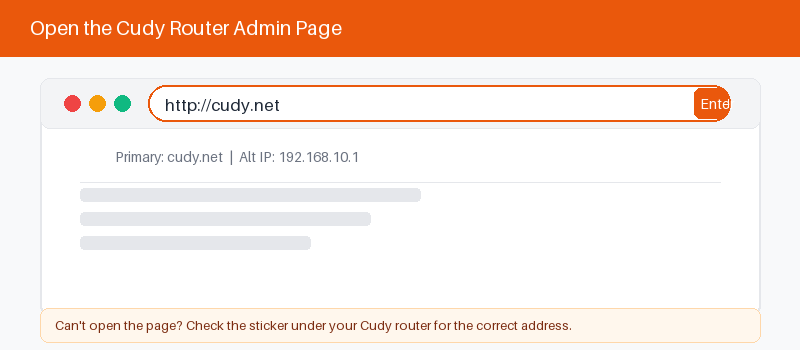
Most routers live at 192.168.1.1. Cudy is different. It uses 192.168.10.1 by default, with the extra ten in the middle. You can also type http://cudy.net, which is easier to remember.
Both addresses open the same page. If one does not load, try the other. The correct address is also printed on the label on the base of the router.
Log In or Create Your Password
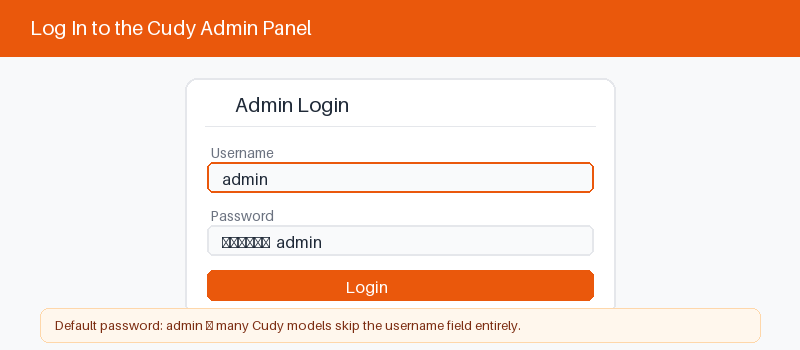
What happens next depends on your model. Older Cudy routers ask for admin and admin. Newer ones skip a default and have you set your own admin password on the very first login.
Follow these four steps to get in.
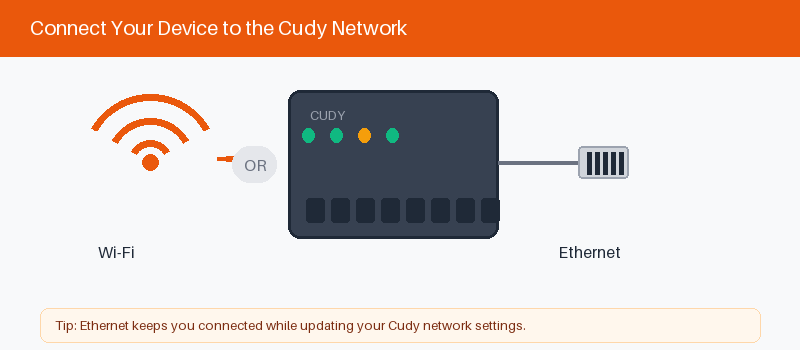
- Connect to the Cudy by Wi-Fi or cable.
- Open a browser and go to 192.168.10.1.
- Type admin, or create your new password.
- Select Log In to open the dashboard.
Set Up With the Cudy App
Cudy also offers a phone app for setup and control. It scans for your router, walks you through first-time setup, and lets you manage Wi-Fi from anywhere without opening a browser.
The app path is simple.
- Install the Cudy app from your store.
- Connect your phone to the Cudy Wi-Fi.
- Open the app and follow the setup wizard.
- 192.168.10.1 login guide
Change Your Wi-Fi Name and Password
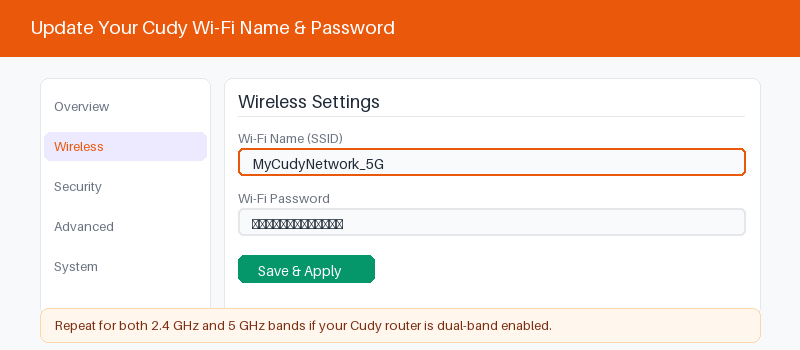
Inside the dashboard, Wi-Fi changes take a moment.
- Open the Wireless or Wi-Fi menu.
- Type a new network name.
- Set a strong new password.
- Save to apply your changes.
If cudy.net or 192.168.10.1 Will Not Open
Login trouble usually traces back to the address or the connection. Because Cudy uses an unusual IP, a mistyped address is the most common cause. Work through these checks.
These four fixes solve most cases.
- Type 192.168.10.1 with the ten included.
- Try http://cudy.net as an alternative.
- Confirm you are on the Cudy network.
- Restart the router and wait a minute.
Reset a Cudy Router to Factory Settings
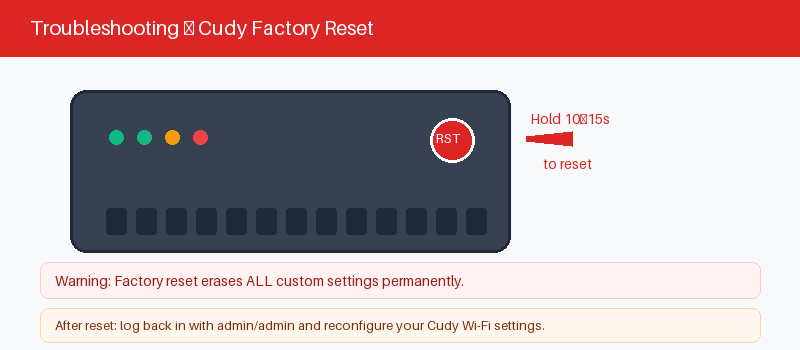
A reset clears your password and every setting, returning the router to factory state. Use it if you forget the admin password. You will set everything up again afterward.
Reset takes about ten seconds.
- Keep the router powered on.
- Hold the Reset button with a pin.
- Wait about ten seconds for the lights.
- Release and let the router reboot.
Frequently Asked Questions
What is the default IP for a Cudy router?
Cudy uses 192.168.10.1, not the more common 192.168.1.1. You can also type http://cudy.net in your browser. The exact address is printed on the label under the router.
What is the default Cudy username and password?
Older Cudy models use admin and admin. Many newer models have no default and ask you to create an admin password on first login. Check the label to confirm your model.
What is cudy.net?
It is a friendly web address that opens the same login page as 192.168.10.1. Join the Cudy Wi-Fi first, then type http://cudy.net into your browser bar, not a search box.
I forgot my Cudy admin password. What now?
There is no master password to recover it. Hold the reset button for about ten seconds. The router returns to factory state, and you set a fresh admin password on the next login.
Can I set up my Cudy router from a phone?
Yes. Connect your phone to the Cudy Wi-Fi and open 192.168.10.1 in a browser. You can also install the Cudy app, which guides setup and lets you manage the router remotely.
Why does my Cudy password fail even when it looks right?
Cudy passwords are case-sensitive. A capital letter from auto-correct or Caps Lock will block the login. Type the password slowly, and check the very first letter before you submit.
Related Brand Guides
On a different brand? These guides use the same steps.
- Huawei Router Login Guide
- ZTE Router Login Guide
- Wavlink Router Login Guide
- Inseego MiFi Login Guide
- Secure your home Wi-Fi (CISA)
Bottom Line
Cudy login comes down to one quirk: the address is 192.168.10.1 or cudy.net, not the usual IP. Get that right, set your own password, and the rest of setup is quick and simple.
Thanks for your feedback!
Sorry about that. Tell us what was missing and we will fix it.